VTuber Background Ideas in 2026: Free, Custom, and Live 3D Worlds

A VTuber background in 2026 has three real options. You can grab a free static image. You can build your own animated scene. Or you can stream a live 3D world straight from a browser. The right pick depends on stream type, setup time, and how interactive you want the scene to feel. The VTuber market hit $3.13 billion this year, up from $2.86 billion in 2025 (Mordor Intelligence, 2026). With that much production money on screen, a flat stock PNG behind a $2,000 rig looks rough. Here’s where to find free backgrounds. We cover custom builds, OBS setup, and using a live VIVERSE World as your 3D scene.
TL;DR
- VTuber backgrounds split into three tiers: free static images, custom animated scenes, and live 3D worlds you can stream from a browser
- Free legal sources include Pixabay, Unsplash, Pexels, itch.io packs, OpenGameArt, Kenney, and creator-distributed assets on BOOTH and Ko-fi
- Capture a VIVERSE experience as an OBS browser source and let viewers join the same scene during or after the stream
- WebGPU shipped in every major browser by November 2025 (web.dev, 2025), making live 3D backgrounds viable on standard hardware
- Always check a license before streaming with someone else’s asset, even on community pack sites
What makes a good VTuber background in 2026?
The VTuber market grew 9.56% year over year in 2026 (Mordor Intelligence, 2026). That growth raised viewer expectations on production. A good background now does three jobs. It matches your model’s resolution. It stays out of the avatar’s way visually. And it gives viewers something to look at without distracting from you.
Resolution should be 1920×1080 at minimum. Most VTubers stream from 720p up to 1440p. A 1280×720 background will look soft when scaled up to 1080 or higher. If you stream at 2560×1440, source assets at 2560×1440 or higher; ditto for 1080.
Visual conflict comes from color saturation and motion. If your avatar has bright pink hair, skip the bright pink wallpaper. If your model has dramatic idle motion, skip the fast-panning animated scene. The background works best when it sits one step quieter than the avatar.
Separation comes from depth and clean edges. Add a slight blur to the back layer. Use a vignette to push focus to the avatar. Keep the lower third clear so chat overlays and alerts have room to land.
File format decides whether the scene moves. Static PNG is the easiest and the lightest on your encoder. Animated WebM with alpha runs well but costs CPU. A live 3D world streamed from a browser source costs more bandwidth but supports interaction. Pick the format that fits your stream’s pace. Fast-paced gaming streams benefit from quiet static scenes. Slower chat streams can carry more motion.
Where can you find free VTuber backgrounds in 2026?
Most VTubers start with free assets. The best legal sources fall into five buckets in 2026.
Stock photo libraries top the list. Pixabay, Unsplash, and Pexels each license content for commercial use with no attribution required. Pixabay runs a strong illustration filter for anime-style scenes. Unsplash leads on photographic interiors and minimal aesthetics. Pexels covers the gap with both.
Community asset packs come next. BOOTH and Ko-fi host hundreds of free VTuber background sets from individual artists. itch.io stocks pixel-art rooms, lo-fi cafes, and seasonal scenes from indie game developers. Most packs ship as PNG or layered PSD at 1920×1080.
Game-development asset sites work too. OpenGameArt and Kenney both run permissive licenses on game-ready backgrounds. The art skews fantasy and pixel, which suits theme streams more than just-chatting.
Stream-overlay platforms ship free template libraries. Streamlabs offers overlay packs that bundle backgrounds, alerts, and lower-thirds. Useful when you want a coherent visual identity in one download.
VRoid Hub adds a fifth source for VRM-native creators. The platform hosts community-shared scenes that work as background fills for browser-based VTuber tools like VSeeFace or Warudo. License terms vary scene by scene, so read each one.
Check the license before you stream. Open license is not the same as “anyone can use anything.” Many BOOTH and Ko-fi creators allow free use for streaming, but some require on-screen attribution and others restrict commercial use, which includes monetized streams. Read their license and documentation for pertinent information.
If you’re building your full VTuber setup from scratch, VIVERSE is worth bookmarking. The platform hosts web-based experiences and virtual spaces you can explore and stream from directly in your browser, no downloads required. Explore VIVERSE.
If you’re brand new and pairing a free background with a free model, our step-by-step guide to free VTubing walks the full stack.
Which backdrop fits each VTuber stream type?
Independent VTubers crossed 50.4% of global watch time in Q1 2026 (StreamsCharts, April 2026). That milestone matters for backgrounds, too. When you’re not backed by an agency with a branded set, your backdrop does more visual work. Here’s a stream-type breakdown by content style.
Just-chatting streams want cozy. Coffee shops, bedrooms, fireplaces, and rainy windows all work well. Warm color palettes signal a low-stakes hangout. Bright neon tends to shift the energy, so it fits better in a gaming or hype context.
Gaming streams want low visual noise. The screen capture already carries motion and color. A solid neon frame or a dark studio wall keeps focus on the gameplay. Cyberpunk works for FPS. Going cozy? Pastel backdrops suit games like Animal Crossing or Stardew Valley.
Singing and music streams want a stage. Concert venues, theatre curtains, and arena lighting fit songs and karaoke. Add subtle particle effects if your setup can handle the extra processing.
Art streams want a studio loft. Wood floors, easels, plants, and large windows look like a working space. Match the background warmth to the art piece you’re working on.
Educational and tech streams want minimalism. Clean desks, whiteboards, and bookshelves read as authority. The viewer should focus on what’s on the screen, not the room.
Seasonal swaps keep the channel feeling current. Pumpkins in October. Cherry blossoms in April. String lights in December. Even one rotating background per season adds production value with low effort.
For more stream-type inspiration, see our stream ideas roundup.
How to build a custom animated background
A custom animated background can run for $0 in free tools. Or it can scale up to After Effects and Blender pipelines that cost $20 to $100 a month depending on the bundle of tools you use. The build steps look similar at every tier. Paint or render layers. Animate at low frame rates. Export in WebM with alpha. Higher tiers buy you more polish, not a different workflow.
Krita is fully free and handles painted backdrops with parallax layers. Photoshop covers the same job at $20 a month. Blender handles 3D scenes you render to image sequences or short video. After Effects is the standard for compositing if you’ve already got a license.
Looping rules matter. Keep the loop under 30 seconds. Use a slow drift or a small particle effect instead of a hard cut. Avoid hard flashes and sudden contrast changes. Your viewers’ eyes will get tired, and accessibility guidelines recommend avoiding more than three flashes per second in any large area of the frame.
Layered parallax adds depth without overhead. Build a background plate, a midground plate, and a small foreground element. Animate each at a different speed. The avatar reads as more “in the room” when the world moves slightly behind it.
Export as WebM with VP9 and an alpha channel. The file stays small, supports transparency, and decodes well on modern hardware. Aim for under 10 MB per loop so OBS can hold it in memory.
How to capture your background in OBS Studio
OBS Studio 32.1 shipped in April 2026 with a full audio mixer overhaul and native WebRTC support (OBS Project, 2026). The browser source security improvements in 32.1 make it a good baseline for this setup. Live 3D worlds now run cleanly as an OBS source on mid-tier hardware.
Setup follows three layers, bottom to top. Layer 1 is your background. Static PNG, animated WebM, or browser source if you’re streaming a live scene. Layer 2 holds any overlay graphics, like alerts or a webcam frame. Layer 3 is your avatar feed from VTube Studio, VSeeFace, or Warudo.
For static images, drag the file into the canvas as an Image source. Set the bounding box to your canvas resolution. Snap to the edges if you don’t want fine positioning.
For WebM animated backgrounds, use the Media Source option. Enable looping. Skip “restart playback when source becomes active” if you don’t want a hard cut on scene swaps.
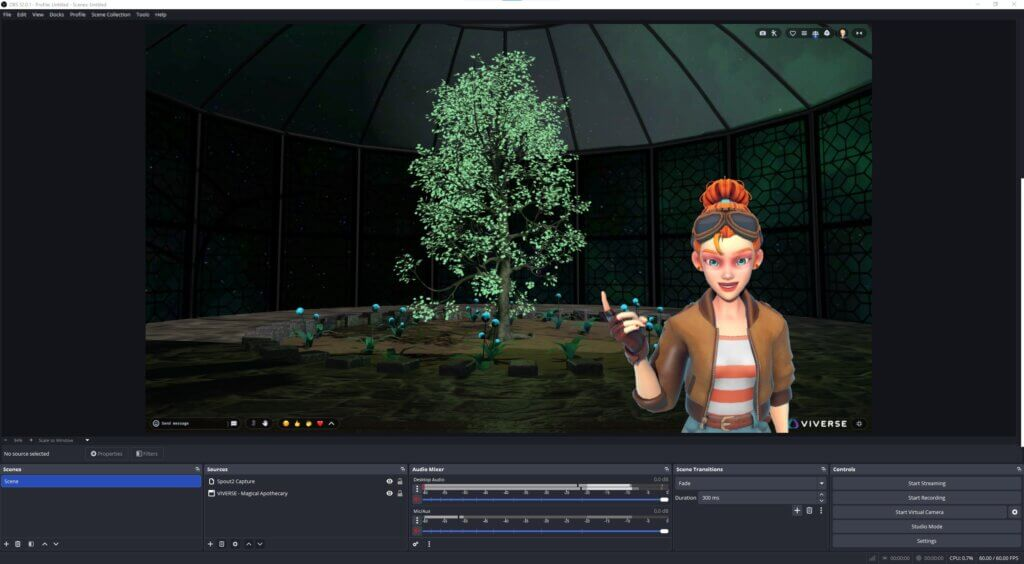
For browser-based 3D worlds, use the Browser source. Paste your VIVERSE world URL. Set the resolution to match your canvas. Disable interaction if you want viewers to see the world but not pull the cursor into it.
For the avatar capture side, our Spout2 capture guide walks through pulling VTube Studio cleanly into OBS without GPU spikes.
How to use VIVERSE Worlds as a live 3D VTuber background
WebGPU shipped in every major browser by November 2025 (web.dev, 2025). That’s the foundation for running real-time 3D scenes inside a browser tab at console-tier quality. Three.js, the most-used WebGL library on the open web, made WebGPU its default renderer in 2026 (Three.js, 2026). The new default delivers roughly 2x the performance of the legacy WebGL pipeline. VIVERSE Worlds runs on top of that. You can drop a world URL into an OBS browser source and stream the live scene as your background.
Three use cases cover most VTubers’ needs.
1. Private stream background. Build a world or pick a public one. Keep the URL private. Use it as a scene only your camera sees. Viewers never get the link. The world stays your personal stage.
2. Public chat lounge. Make your world public and share the link in chat. Followers and subscribers can join the same world after the stream for hangouts, watch-alongs, or member events. Your avatar acts as host. The scene behind you on stream and the scene your viewers explore are the same one.
3. Shareable interactive content. Drop the world link in chat mid-stream. Viewers click and walk through the scene with you while you commentate. Great for art reveals, world tours, and seasonal events.
The Beyond the Map series on VIVERSE highlights worlds curated for specific stream moods. The first entry covers tranquil scenes for music streams, art streams, and quiet just-chatting sessions.
Browser-based XR is also bleeding into hardware that was once native-only. Snap shipped Snap OS 2.0 with a native browser and full WebXR support in late 2025 (TechCrunch, 2025). That matters because the same live world you stream can run on a viewer’s headset too. No app install needed.
Why this beats a static PNG. A live world is the only background that lets your viewers walk into the scene with you. The cost is one OBS source and a browser tab. The payoff is a chat-to-world bridge that PNG and WebM can’t reach.
Creator permission matters. If you stream with another creator’s VIVERSE world as your background, ask first. Check to see if the VIVERSE creator lists use terms in the world description. Default to “ask before you stream with it.”
Setup is three steps. Open the world in a browser tab. Add it as an OBS Browser source. Position the layer behind your avatar feed.
What resolution and format should a VTuber background use?
The right baseline is 1920×1080 in 2026. Twitch caps non-partner broadcasts at 1080p60 with a max bitrate of 6,000 kbps (Twitch Help Center, 2026). If you have partner-tier bitrate, source at 2560×1440 and let the encoder downsample.
File format depends on motion.
- Static. PNG, 24-bit color, with a transparent layer if you plan to composite. JPG works but compresses gradients poorly.
- Animated. WebM with the VP9 codec and an alpha channel. Loop length under 30 seconds. Aim for under 10 MB per file.
- Live 3D. Browser source pointing to your VIVERSE world URL. No file. The browser tab is your background.
Frame rate is the last variable. 30 fps is fine for static and most animated scenes. 60 fps only matters if the background motion is fast, and it doubles the encode load.
Frequently Asked Questions
Where can I get free VTuber backgrounds legally?
Free legal sources include Pixabay, Unsplash, Pexels, itch.io VTuber asset packs, OpenGameArt, Kenney, and creator-distributed assets on BOOTH and Ko-fi. Always check the license. Open-license stock photos require no attribution. Community packs often request credit or restrict commercial use, which includes monetized streams.
What size should a VTuber background be?
A VTuber background should match your stream output resolution. The 2026 baseline is 1920×1080 for 1080p streams and 2560×1440 for 1440p streams. Sourcing higher than your output is fine; OBS will downscale cleanly. Sourcing lower than your output creates soft edges and visible upscaling artifacts.
How do I add an animated background in OBS?
Add the WebM or video file as a Media Source. Enable looping. Set the bounding box to match your canvas resolution. Place the source on the lowest layer in your scene stack. Keep loop length under 30 seconds and file size under 10 MB to avoid encoder lag.
Can I use a live 3D world instead of a flat image?
Yes. WebGPU shipped in every major browser by November 2025 (web.dev, 2025), making browser-rendered 3D scenes practical at full streaming quality. VIVERSE Worlds captures as an OBS browser source. Viewers can also join the same world during or after your stream.
Build your VTuber background once, then evolve it
A 2026 VTuber background isn’t a flat PNG choice anymore. It’s a stack. Start with a free static image from Pixabay or BOOTH while you find your tone. Switch to a custom animated scene once your avatar tier and content rhythm settle. Then add a live VIVERSE World as the next layer. Use it when you want viewers to walk into the same scene you stream from.
You don’t have to pick one and commit. Most VTubers run all three across different scenes inside OBS. Static for the title card. Animated for chat segments. Then add a live VIVERSE World as the next layer. Use it when you want viewers to walk into the same scene you stream from.
Ready to test a live 3D background? VIVERSE Create is free and runs in the browser. Build your own world, drop the URL into an OBS browser source, and stream it as your scene. For everything else that goes into a 2026 VTuber stack, see our complete VTuber beginner guide.