How to Make a 2D VTuber Avatar FREE With No Drawing or Rigging

If you’re searching for a free VTuber model maker to create a 2D VTuber model without drawing or rigging, Mannequin Character Generator (MCG) is one of the easiest tools to start with. Many beginners assume VTubing requires expensive Live2D software or art commissions, but a free 2D VTuber maker like MCG lets you design, animate, and stream your own avatar at no cost.
VTuber avatars generally fall into two categories: 3D models, like those made with VIVERSE’s free avatar creator; and 2D avatars, which focus on expressive, illustrated looks. This guide focuses on 2D VTuber makers, using MCG as a free example that anyone can try.
MCG: Free Demo vs Paid Version
MCG offers both a free demo and a paid version.
The demo includes all the tools needed to create and export a 2D avatar, while the paid version adds more outfits, facial features, and higher-quality exports. For most new creators, the free version is more than enough to get started.
In this guide, you’ll learn how to design a free 2D avatar with MCG, animate it using Inochi Session and Puppetstring, and stream it through OBS Studio—no drawing or technical setup required.
You can also watch VTuber Zekoz’s video guide to see the avatar creation process in action.
Step 1: Build Your 2D Avatar Using a Free VTuber Model Maker (MCG)
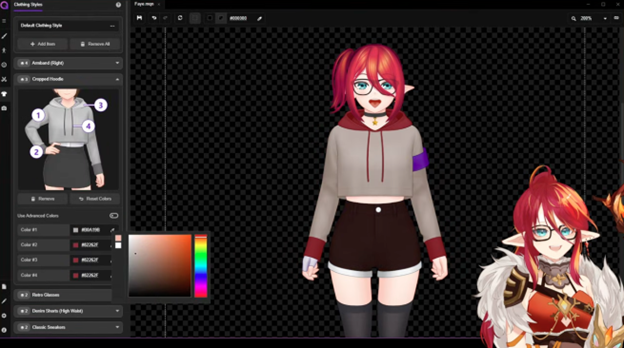
Mannequin Character Generator (MCG) is a free VTuber model maker designed for quick and easy avatar creation. It lets you build a detailed 2D character in less than an hour using fully customizable presets—ideal for beginners who want fast results.
Open MCG on your computer and start a new model. You’ll see a wide range of presets for hair, eyes, cothes, colors, and more. Go through each option and adjust the sliders until you’re happy with your avatar’s look.
Why MCG works well for beginners
- No drawing or setup is required. Every piece is pre-made and fully adjustable.
- Fast results. Many users finish a complete model in under an hour.
- Two creation modes. Generate a random design instantly or fine-tune everything manually, similar to a character creator in a game.
While the free demo includes fewer styling options than the paid upgrade, it’s still one of the best free 2D VTuber model makers for beginners who want to explore VTubing without spending money.
VTuber Zekov’s virtual character FAY was built entirely using MCG, including a new outfit created with just a few clicks.
Step 2: Export and Prepare Your Model for Tracking
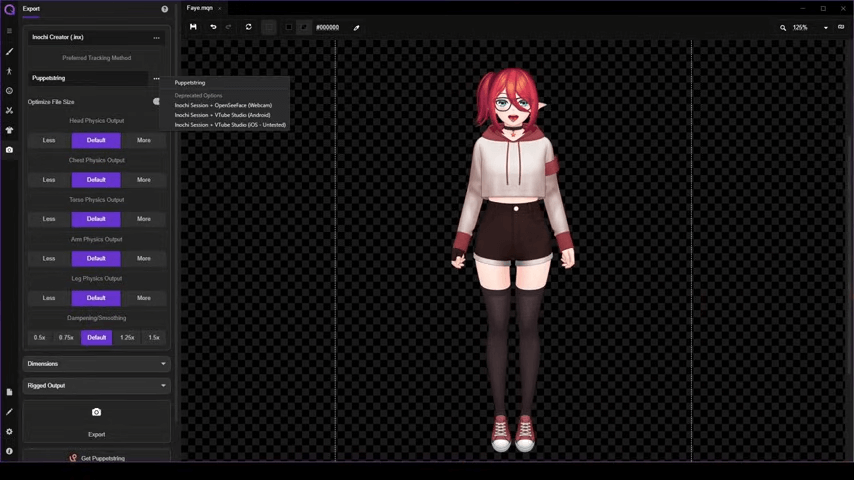
Once your model is ready, you’ll export in a format that allows facial tracking.
MCG offers two export options:
- PNG export: Creates a static image with a fixed open mouth
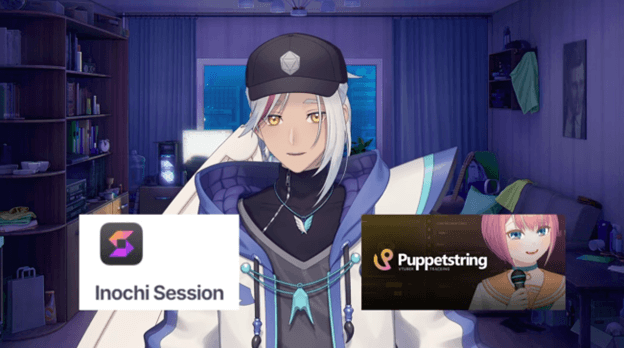
- Puppet String export: Exports a layered, Live2D-style model that supports movement and facial expressions.
Choose Puppetstring when saving your model. This format prepares your model for tracking int he next step. While this guide focuses on MCG, most free 2D VTuber makers follow a similar export workflow.
To animate your avatar, you’ll use two free programs by the saem development team of Inochi Session and Puppetstring.
| Tool | Function | Purpose |
| Inochi Session | Acts as your main VTubing hub, similar to VTube Studio. | Loads and manages your Live2D model. |
| Puppetstring | Captures facial motion input from your webcam for avatar expressions. | Connects expressions and head movements to the avatar. |
Using both tools together gives you stable, real-time animation.
Step 3: Set Up Face Tracking and Calibration
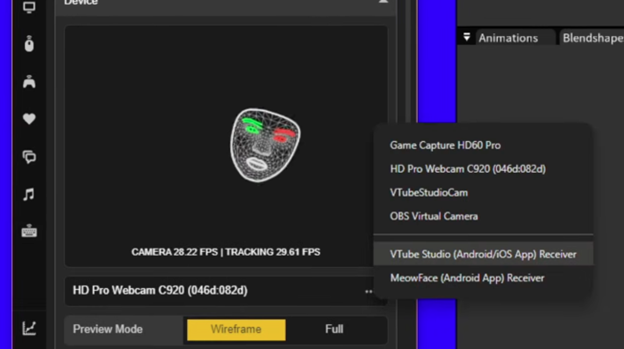
Your 2D VTuber model needs to track your expressions accurately, so your expressions appear natural. Setting this up with Inochi Session and Puppetstring only takes a few minutes:
- Launch both Inochi Session and Puppetstring.
- Load your exported model from Step 1 into Inochi Session.
- In Puppetstring, follow the instructions pertaining to Inochi Session.
- Select your webcam and click Calibrate Head Position.
- Look directly into the camera for several seconds while the software aligns tracking data.
- Under Tuning, enable Sync Eye Blink to keep your character’s eyes moving naturally.
These calibration steps reduce jitter and keep expressions balanced. Once completed, your avatar will mimic your facial movements smoothly and maintain a consistent presence on screen.
Step 4: Integrate with OBS for Streaming
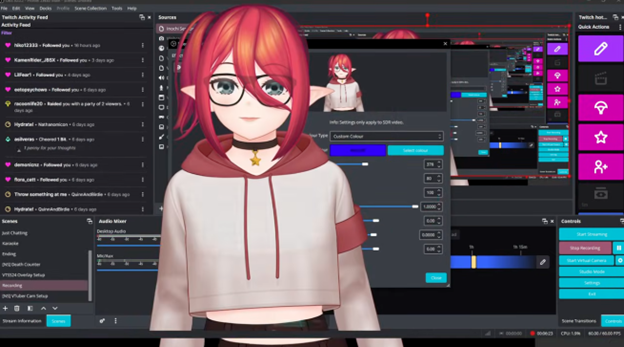
With tracking complete, your avatar is ready for streaming. OBS Studio connects easily to Inochi Session.
How to add your avatar to OBS
- Open OBS Studio.
- Add a Spout Capture source to link with Inochi Session.
- Add a Filter, then apply a Chroma Key filter. Use the eyedropper tool to remove the background cleanly.
- Adjust keying and brightness settings until the avatar blends naturally into your scene.
Your 2D VTuber avatar should now appear crips and ready for livestreams, video recordings, or virtual appearances.
Who Should Make a Free 2D Avatar and Why
Creating a free 2D VTuber avatar with the free tools we’ve described can be a great idea for anyone. But this setup may be especially suited for:
- Complete beginners: If you’ve never tried VTubing at all, it offers a great way to test the waters without spending a thing.
- New VTubers: You can learn the basics of VTubing at no cost before upgrading to more advanced setups.
- 3D VTubers or YouTubers: Add a 2D look to your content mix for variety or privacy.
Free tools lower the barrier to entry, making VTubing accessible to anyone with a webcam/smartphone and an hour of experimentation. For even more free avatar tools, see Best Free VTuber Makers to Create an Avatar Model with Top 2D and 3D Makers.
Final Thoughts
Whether you use Mannequin Character Generator or other 2D VTuber makers, these free tools make it easy to design, animate, and stream your own avatar.They prove that VTubing doesn’t require expensive software—only creativity, consistency, and a workflow you enjoy.
TL;DR: Start VTubing today for free. Experiment with your style, learn the workflow, and shape your virtual identity at your own pace.
About the Video Author: Zekoz
Zekoz is a VTuber creator and educator who focuses on making VTubing more approachable for beginners. His tutorials clearly explain how to start VTubing using accessible tools like Mannequin Character Generator, Inochi Session, and OBS Studio, without requiring advanced art or rigging skills.
By combining technical clarity with practical tips, Zekoz helps aspiring VTubers understand the real workflow behind model creation—from setting up layers and tracking to optimizing streaming layouts. His Mannequin Character Generator Quick Tutorial video offers a step-by-step visual companion to this guide, showing exactly how a free 2D avatar can be built and animated in under an hour.
Committed to the idea of “Making VTubing Knowledge Accessible to Everyone”, Zekoz continues to guide new creators toward confident, creative, and cost-effective VTubing setups.
References
- Zekoz. 2025. “Making A VTuber Model Is SO EASY Now! [Mannequin Character Generator Quick Tutorial].” YouTube. February 9. https://www.youtube.com/watch?v=AVg2PgMWs7E.